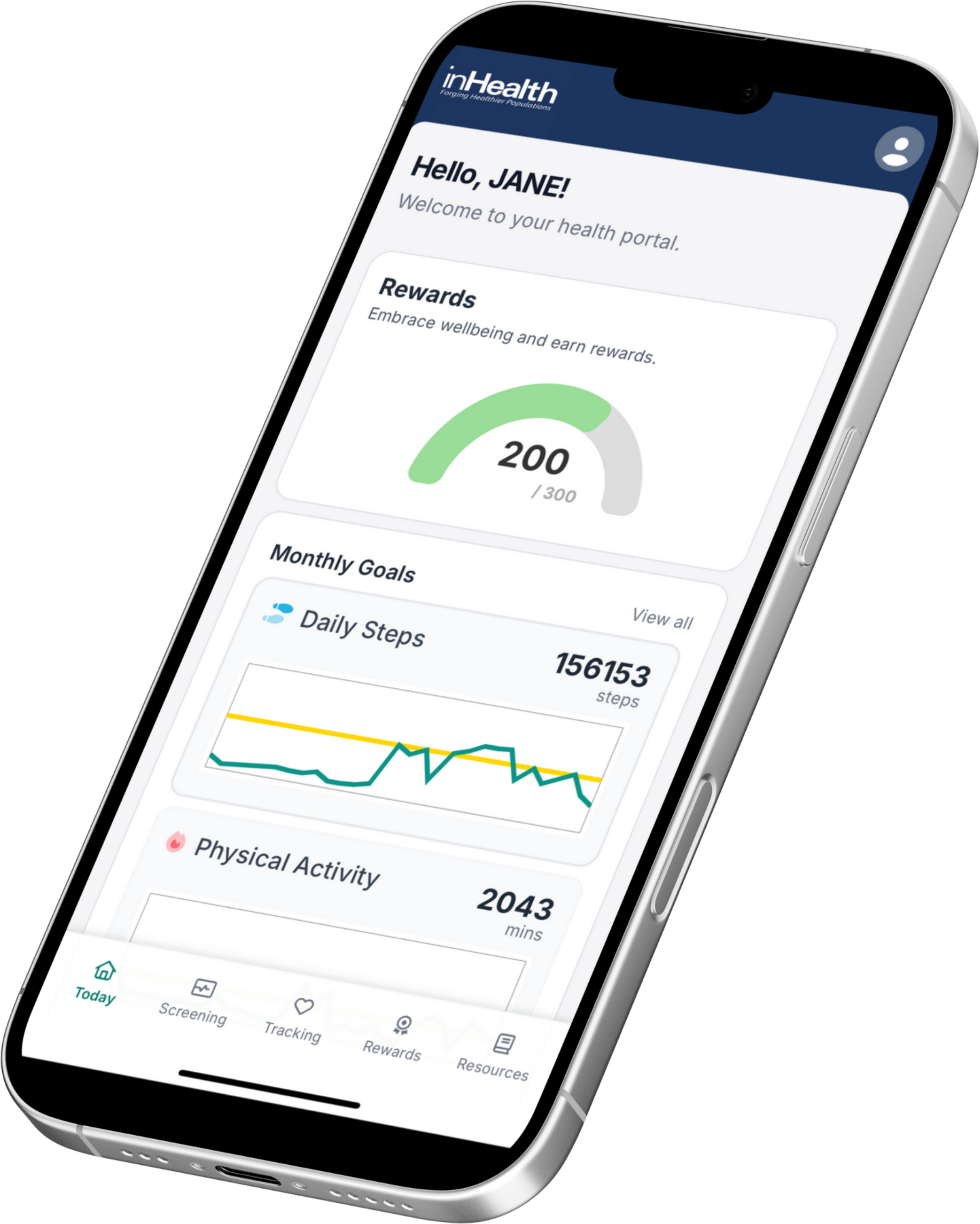
The inHealth: Wellbeing app gives you convenient access to your company’s wellbeing program, the tools to track your health, and a library of resources for all the dimensions of wellbeing and care conditions.
The inHealth: Wellbeing app gives you convenient access to your company’s wellbeing program, the tools to track your health, and a library of resources for all the dimensions of wellbeing and care conditions.
Follow these steps to update
your inHealth: Wellbeing app
Whether you have aniOS or Android smartphone, here is how to check that you have the latest version of the inHealth Wellbeing app!
Open the App Store: Tap the App Store icon on your device’s home screen.
Access Your Account: Tap your profile icon in the top right corner of the screen.
Scroll to Available Updates: If automatic updates are enabled, scroll to Upcoming Automatic Updates.
If the inHealth: Wellbeing app appears here, tap Update next to it. If it doesn’t appear, your app is already up to date.
If automatic updates are disabled, you’ll see a list of pending updates under Available Updates. Find the inHealth: Wellbeing app and tap Update next to it.
Open Google Play Store: Tap the Play Store icon on your home screen or app drawer.
Access Your Account Menu: Tap your profile icon in the top right corner, then select Manage apps & device.
Check for Updates:
Under the Overview tab, look for a section called Updates available.
Tap See details to view a list of apps with updates.
If the inHealth: Wellbeing app is listed, tap Update next to it.
If it’s not listed, your app is already up to date.
Experiencing Issues?
Clear Cache or Browser Data: Clear your browser’s cache and data. Sometimes, errors persist due to cached issues.
Update Operating System: Ensure your Android, iOS, macOS, or Windows device has the latest updates installed.
Update Browser: Make sure your browser is up to date. Older versions may not support all the necessary features required to complete the survey smoothly.
Alternate Browser:If you’re experiencing issues, try using a different browser. We recommend Firefox for the best experience, but you can also try Google Chrome or Microsoft Edge.
Enable Compatibility Mode: If you’re using a desktop and encountering issues, try enabling compatibility mode in your browser. This can help resolve common compatibility issues with web applications.
Check App Version: If you are experiencing issues accessing or submitting your HRAQ form, please ensure you have the latest version of the inHealth: Wellbeing app installed on your device.
If Android – Update Google Play Store App: If issues persist, ensure that your Google Play Store app is up to date. To do this, go to the Play Store and look for the Play Store app.
Update Operating System: Perform any pending operating system or firmware updates for your Android, iOS, MacOS, or Windows device.
Clear App Cache: Clear the app’s cache in your phone’s settings. Sometimes, errors persist due to cached issues within the app.
Force Close the App (Android): Find the app in your phone’s settings and force close it. If issues continue, uninstall and reinstall the app.
Force Quit the App (iOS): Swipe up from the bottom of the screen (or double-click the Home button on older devices) to open the app switcher, then swipe up on the app to close it. If issues continue, uninstall and reinstall the app.
Questions about syncing your Health Data?Click here!